The Admin Console is a centralized interface for managing critical aspects of the Vodori platform across the entirety of an organization. The Admin Console enables streamlined control over user access, new user invitations, and monitoring license allocation.
Users with the appropriate permissions can access the admin console by toggling personas from their Account Menu.
- Click the profile icon in the top right corner
- Select the A icon persona under “Other Personas”
User Type
User Type is a high-level categorization used to group users into specific segments. A user's type is assigned automatically based on email address and is intended to provide context when viewing the full list of users with access to a given organization.
| Type | Description |
|---|---|
| Member | User’s email address is a domain that has been configured as affiliated within the organization. |
| Guest | User’s email address is a domain that has NOT been configured as affiliated within the organization. For example, users from agencies or other third parties with access to your Vodori tenant. |
| Vodori | User’s email address is vodori.com. These users have access to provide service and support. |
User Statuses
| Status | Description |
|---|---|
| The user has been set up and invited but has not yet completed the steps from the invitation email to finalize their account. | |
| The user finalized their account setup and has successfully authenticated. If they are assigned a persona to an app, they will be able to access the platform based on those permissions. If they are not assigned any personas, they won’t be able to access your platform. | |
The user’s access at the organization level has been deactivated by an administrator. This removes their ability to access any tenant or app.
|
Edit a User’s Timezone, Title, or Department
- Navigate to the Admin Console.
- Click “Users” on the left side panel.
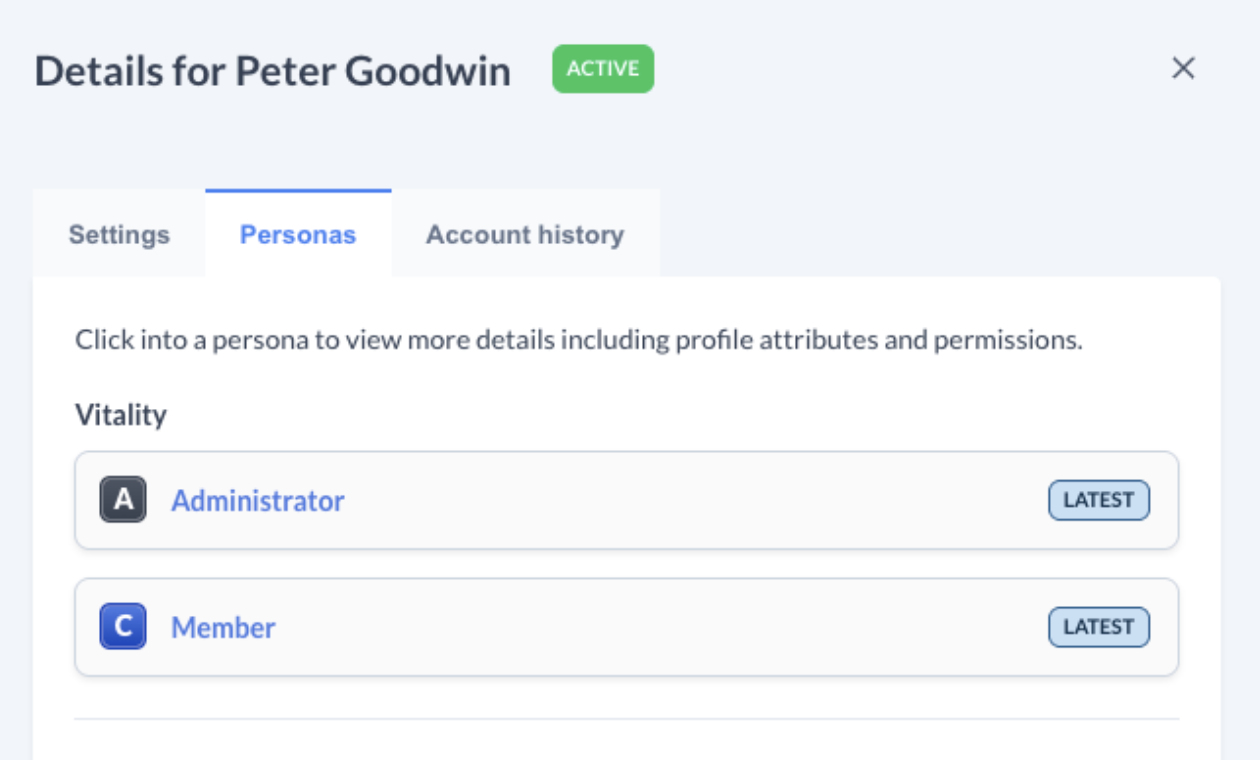
- Click the User name in the table to open the detail panel
- From the Settings tab, admin can edit the user’s name, time zone, and preferred language
- From the Personas tab, the admin can edit the user’s permissions or title & department
View a User’s Account History
- Navigate to the Admin Console.
- Click “Users” on the left side panel.
- Click the User name in the table to open the detail panel
- From the Account History tab, admin can view each user’s login activity as well as their assigned persona designations.
Comments
0 comments
Article is closed for comments.